
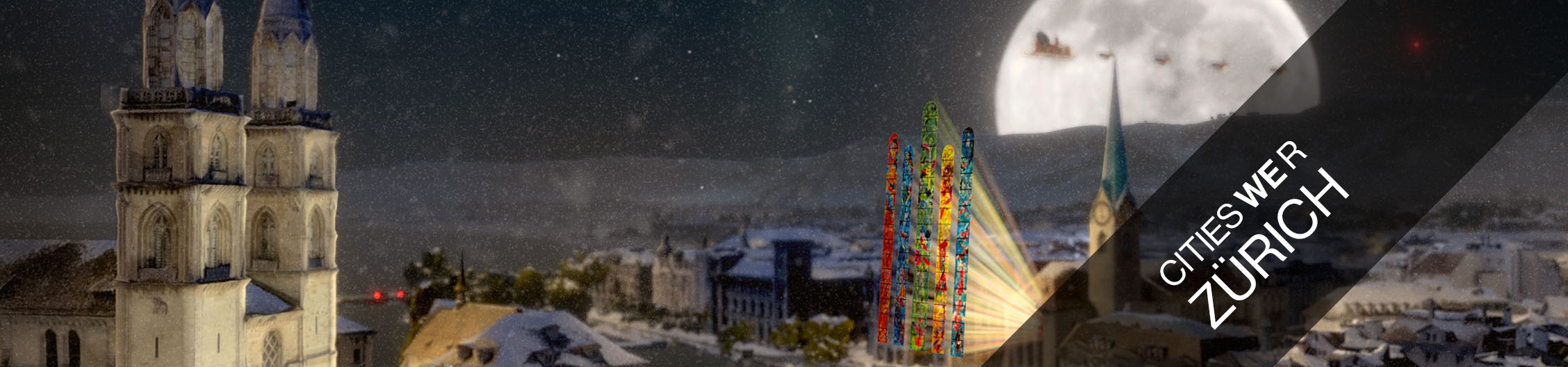
Finally it is here. The hometown of Birdly - Zurich. Explore the famous Bahnhofstrasse or soar over lake Zurich in this highly detailed Birdly City experience. Trace the footsteps of the Romans through the narrow and winding streets of the historic city center. Meet Santa in a heartwarming winterly night-scene
We welcome you in Birdly City – Zurich.
Online / Offline
The Zurich experience consists of two versions. The standard "online" and additional "offline" version.
Online
The online version is the standard download version of the Zurich experience, distributed to all subscription customers. The file size of the experience is much smaller, but it requires that Birdly is connected to high-speed internet (100Mbit/s or faster) to stream the data directly to Birdly.
Offline
If you need the offline version of the new experience, please request it at support@birdly.com
Changing Seasons
The default season of the experience is set in the Experience Settings (See Below).
However, you can quickly change the season from summer to winter (or vice versa) by pressing the "Down Arrow" button on the Birdly Remote while someone is flying. After the flight is finished the experience will automatically go back to the default season.
Technical Details Online version
- Filesize: 2 GB
- Estimated Download Time: 4:45h (1Mbit/s), 0.5h (8Mbit/s), 11min (24Mbit/s), 3min (100Mbit/s)
- Graphic Hardware Requirements
- With HTC Vive: Nvidia 1080 Ti
- With Valve Index: Nvidia 2080 Ti
- Free Disk Space: 10 GB
- Internet Bandwith Requirements:
- 40Mbit/s (Minimum)
- 100Mbit/s (Recommended)
Technical Details Offline version
- Filesize: 13 GB
- Estimated Download Time: 31h (1Mbit/s), 3:52h (8Mbit/s), 1:17h (24Mbit/s), 19min (100Mbit/s)
- Graphic Hardware Requirements
- With HTC Vive: Nvidia 1080 Ti
- With Valve Index: Nvidia 2080 Ti
- Free Disk Space: 15 GB
Installation of the Offline Version
- Get the offline files from our support.
- Copy the "Zurich_2020_Offline_N.umbrascene" file to your Documents folder.
- Install the Experience as usual. (Described Here)
- Create a new set of experience settings or open the existing one. (Described Here)
- Go to the setting: General->Content->ZH2020.
- Edit the Value of the "AbsoluteUmbrafilePath" and select the "Zurich_2020_Offline_N.umbrascene" file.
- Click apply to save the settings.
- If you wish to revert to the online settings, click on "Set Default".
You will not loose your settings or the offline file in case you update the experience.
Experience Settings
 |
For more information of how to access and edit the Experience settings click here. |
Gameplay
| Settings Name | Settings Info |
|---|---|
| GameSessionTime | Time in seconds - Change this number to set the play time for each game. |
| UiLanguage | Sets the Ui Language. (Startup is always English) |
General
| Settings Name | Settings Info |
|---|---|
| Start Season | Change the season the game defaults to at start. 0: Summer, 1: Winter. |
| AbsoluteUmbrafilePath | In case you use the offline version select the "*.umbrascene" file you received from us. Defaults to the experiences online repository. |
Hardware
| Settings Name | Settings Info |
|---|---|
| DesiredStartupLandingPosition | Sets the Landing Position Birdly Defaults to at startup of the Experience. |
Movie
| Settings Name | Settings Info |
|---|---|
| IdleMovieStartsInSeconds | How many seconds the game should wait until it starts the idle movie. Timer starts as soon as headset is not used anymore. |
| MoviePath | Choose a video file saved on the Birdly computer that you want to play as idle movie. If left blank, it will play the default idle movie. You can also have multiple videos play after each other. For this you have to copy and paste the folder location that contains all the movies. (Example: "C:/User/Birdly/Documents/IdleMovie/") |
Quality
| Settings Name | Settings Info |
|---|---|
| GlobalQuality | Change this in case you experience severe drops in FPS. Default = 1 |