
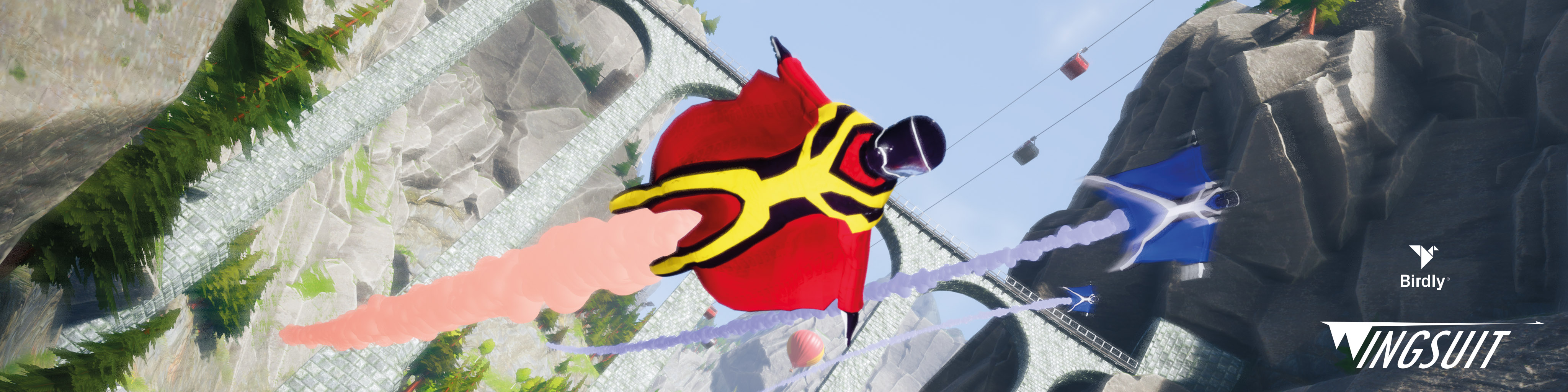
Feel a rush of pure adrenaline pumping through your veins as you speed down the mountain. Birdly Wingsuit Racer lets you experience the breakneck speeds and death-defying proximity of a wingsuit flight. Dive from the highest summit and push your limits as you race towards the valley floor. Test your skills against the clock or other players - do you dare to be the fastest?
Technical Details
- Current Version: 2.095
- Filesize: 5 GB
- Estimated Download Time: 12h (1Mbit/s), 1:30h (8Mbit/s), 30min (24Mbit/s)
- Graphic Hardware Requirements
- With HTC Vive: 2080 TI+
- With Valve Index: 2080 TI+
- With HTC Vive Pro 2: 2080 TI+
- Free Disk Space: 20 GB
- Lan Requirements (Multiplayer)
- Birdly must be connected via LAN
- Locally connected Birdlies must be in the same subnet
- Open Ports: 7777 (UDP & TCP), 80 (Online only)
- Internet connection with low ping and > 4 Mbit/s connection speed (Online Only)
VR Setup
Valve Index / HTC Vive 1
Set the image quality in the SteamVR settings - general to: 100%
HTC Vive Pro 2
Set the image quality in the Vive Console Settings -> Display Settings to: Balanced
Set the image quality in the SteamVR settings -> general to: 50%
Multiplayer Setup
To support multiplayer game-play you need multiple Birdly's that are connected to the local network (LAN).
Multiplayer Mode:
Standalone
Standalone mode means: No Multiplayer. The High-score is saved locally or synchronized using an online service (available Q4 2022).
To enable "Standalone Mode" set the "Multiplayer-Mode" setting to: "0 = Standalone" (See settings below)
Local Network Multiplayer
This means Birdly's with the same settings will be able to play together if they are in the same Local Area Network (LAN).
To enable "Local Area Network Multiplayer" set the "Multiplayer-Mode" setting to: "1 = Local Area Network Multiplayer" (See settings below)
Online Multiplayer
Online Multiplayer capability is planned for 2023
Connection Settings:
In order for several Birdly's to play together one of them must have the role of the "Server" while the others are clients. You can influence which Birdly does what in two ways:
Auto-connect (recommended)
To enable Auto-connect mode set the "Role" setting in the Birdly controller to "0 = autoconnect"
- After starting the experience, the Birdly's will connect automatically to the first available server.
- If no server is available, the Birdly which starts the Experience first will become server.
Manual Selection
To use the manual selection:
- Set the "Role" setting of one Birdly to "1 = Server"
- Set the "Role" setting of the other Birdly's to: "2 = Client"
After starting the Experiences the Birdly's will connect appropriately.
If no server is found the clients will try connecting indefinitely.
Note: Several important settings will be synced from the server to the clients. Which exactly can be seen below.
Audience Screen
The Wingsuit Experience provides a special Mode for the Audience: The Audience Screen mode. It will show the currently running race in the style of a Skiing- or Car Race with automated camera cuts etc.
To enable it you will need the following:
- Standalone Windows PC
- CPU: Intel i7 8700k or better
- 16Gb RAM
- Graphics Card: Nvidia 1080 TI or Better
- 10Gb Disk space
- Network Connection
Then you will have to install the Audience Screen Package which you can request from our service team at support@birdly.com
After installation you can simply start the Experience using the shortcut on your desktop. It will wither connect to a already running game instance in your network or start as server for the others if none is detected.
Experience Settings
 |
For more information of how to access and edit the Experience settings click here. |
General
| Settings Name | Settings Info |
|---|---|
| SpeedUnit |
Speed Unit used in the Experience:
|
| UiLanguage |
Sets the UI language accordingly
|
Gameplay
| Settings Name | Settings Info |
|---|---|
| GameSessionTime |
Time in seconds - Change this number to extend the play time for each game. |
| HighscoreTimespanFilter |
Filters the highscore to be displayed, shows only entries from the:
|
| HighscoreGroups (Synced) |
Enter tags to assign your highscore to a specific group. |
| DefaultExperience |
Sets the gameplay mode:
|
| NameInputEnabled (Synced) |
Enables the Name Input Wheel at the Start of the Game |
| DefaultPlayerName |
Default names in case the user cannot enter their name. |
| NameInputMaxTime |
Maximum Time for the Player to enter their name. 0 = Unlimited Time |
| PlayerStartPosition |
The Start Position of the player from Left to right. 0 = Random selection |
| ShowSpectatorHighscore |
Sets the visibility of the high-score on the Spectator Screen |
| EnableGhosts |
If true enables Ghost in Race and Proximity Flight |
| NumberOfGhosts |
Number of Ghost Players. Number 1 will always be the Leader, number 2 & 3 are the two last flights. |
| IsExternalScreen |
Starts this Instance as Audience Screen. |
Hardware
| Settings Name | Settings Info |
|---|---|
| StandardLandingPosition | Change the height of the get-on position when the Experience starts for the first time. 0 = Low 1 = Middle 2 = High |
| MinPitch / MaxPitch |
The maximum angles (in forward and backward) for the Hardware. This setting is only available upon request. |
| MinRoll / MaxRoll |
The maximum angles (in left and right) for the Hardware. This setting is only available upon request. |
Movie
| Settings Name | Settings Info |
|---|---|
| MovieEnabled | true = Idle Movie will play when machine is not in use false = Idle Movie will never play |
| MoviePath | Choose a video file saved on the Birdly computer that you want to play as idle movie. If left blank, it will play the default idle movie. |
| IdleMovieStartsInSeconds | How many seconds the game should wait until it starts the idle movie. Timer starts as soon as headset is not used anymore. |
Quality
| Settings Name | Settings Info |
|---|---|
| RenderQuality | Change the overall graphic quality of the game. If you are still using old computer hardware, you can reduce the graphic quality for faster game playback. 0 = Low Quality (Birdly V1) 1 = High Quality (Birdly V2, or upgraded V1 computer hardware) 2 = Epic (Only if machine has at least a RTX 2080 Ti graphic card installed) |
| MusicEnabled |
true = Music will play in flight |
Network
| Settings Name | Settings Info |
|---|---|
| MultiplayerMode | Changes the multiplayer mode accordingly 0 = Standalone (No Multiplayer) 1 = Local Area Network Multiplayer 2 = Online Multiplayer (Available Q1-Q2 2022) |
| MultiplayerRole |
Sets the role of this Birdly if used in a multiplayer setting 0 = Autoconnect |
| NetworkSynchronStart |
Enables synchronous start in multiplayer mode. All players that are ready will be started simultaneously. |
Tutorial
| Settings Name | Settings Info |
|---|---|
| ShowTutorial (Synced) | Enables the Tutorial at the beginning of the game |
Billboards
The content of the Billboards can be changed. These settings are only available upon request: sales@birdly.com
| Settings Name | Settings Info |
|---|---|
| RemoveAds (Synced) | Set to true if you wish to disable all branding in the experience. |
| CollectibleImage | Path to a PNG with alpha channel (512x512px) for the collectibles Logo. Pictures without Alpha or jpeg files will only show a white square. |
| StartBanner | Path to a jpeg or PNG (512x2048px) for the banner at the player start. |
| FinishBanner | Path to a jpeg or PNG (512x2048px) for the banner at the end. |
| Square | Path to a jpeg or PNG (512x512px) for the InGame Billboards |
| Wide | Path to a jpeg or PNG (512x1024px) for the InGame Billboards |
| UltraWide | Path to a jpeg or PNG (512x2048px) for the InGame Billboards |